

My old laptop had 4 GB of RAM, and I learned what that meant the hard way. I opened Chrome with ten tabs, started Spotify, and then launched a game — and the whole machine froze like a photograph. The mouse barely moved, the music stuttered, and I sat there wondering if the laptop had died. It had not. It had simply run out of RAM, the fast, short-term memory your computer uses for everything it is doing right now. Once I understood RAM, I stopped blaming my laptop and started managing it — and honestly, it is one of the most useful things a beginner can learn about their own machine.
📅 Want a study plan for this topic?
Get a free 7-day learning plan in your calendar — one small lesson every day.
What Is RAM?
RAM — short for Random Access Memory — is your computer's desk. When you open an app, a file or a browser tab, the computer copies it from slow storage onto the desk, where the CPU can grab it instantly. The bigger the desk, the more things you can spread out and work on at once. Close the app, and its space on the desk is cleared. Switch the computer off, and the whole desk is wiped clean — RAM forgets everything when the power goes, which is why it is called volatile memory.
The Main Idea
Most beginners get stuck right here: they mix up RAM and storage. Storage is your filing cabinet — huge, slow, and permanent. RAM is your desk — small, fast, and temporary. A 512 GB hard drive holds your files forever, but your computer cannot work directly from it; it is far too slow. So it copies the few things you need right now onto the desk. In my opinion, that single picture — desk versus filing cabinet — explains 90% of how computers handle memory, and it also explains why adding RAM makes an old computer feel brand new.
In Simple Words
Here is the whole idea, in four steps:
- You open an app — the computer copies it from storage into RAM.
- The app uses a slice of RAM while it runs — a browser tab here, a song there.
- The CPU reads and writes that slice at lightning speed, millions of times a second.
- You close the app — its slice is freed, ready for the next thing.
Let's Fill Up 8 GB of RAM, Step by Step
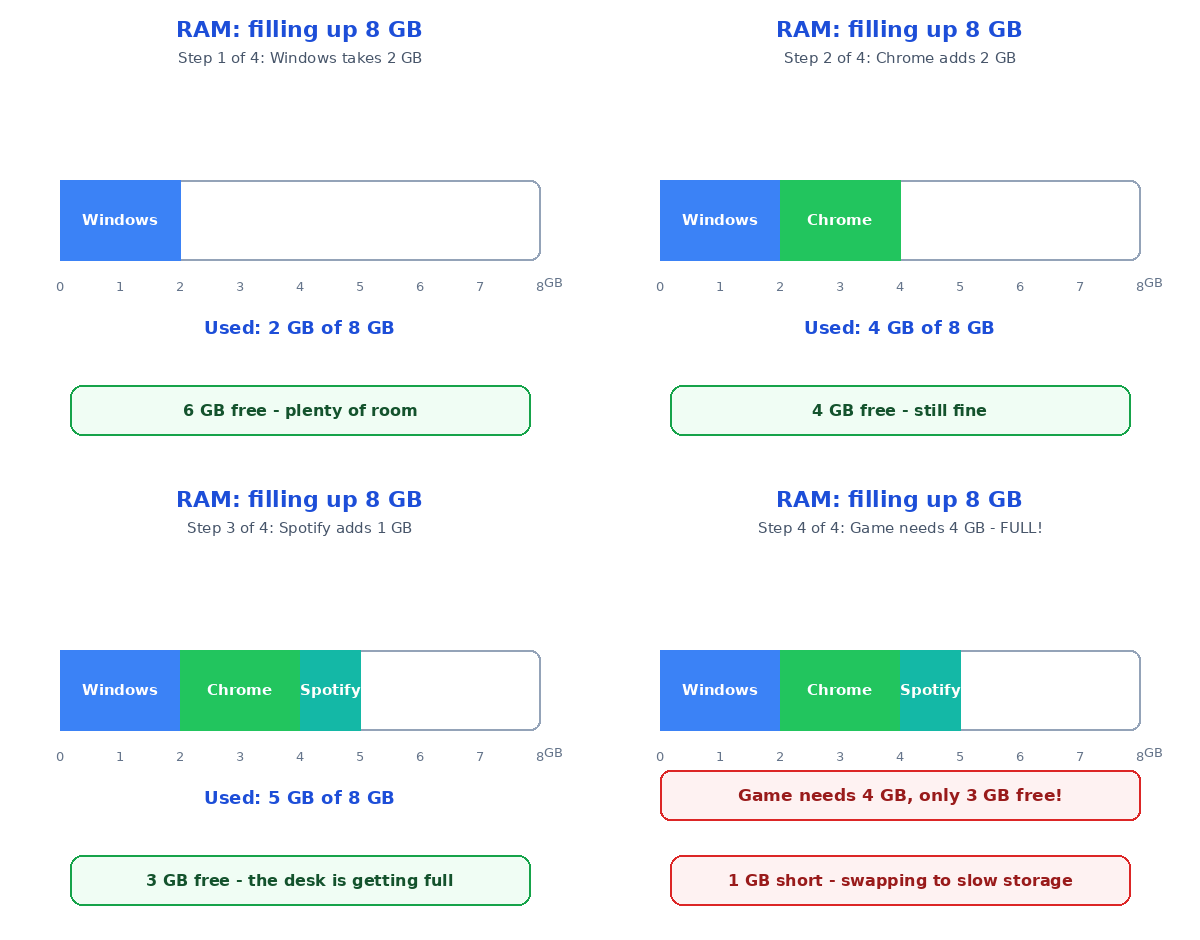
Imagine a laptop with 8 GB of RAM. That sounds like a lot, until you watch it disappear. Here is a normal evening, one app at a time:
| Step | What you open | RAM used | RAM left |
|---|---|---|---|
| 1 | Windows itself | 2 GB | 6 GB |
| 2 | Chrome, 10 tabs | 2 GB | 4 GB |
| 3 | Spotify | 1 GB | 3 GB |
| 4 | A game | 4 GB | 0 GB — full! |
Watch the last step carefully. The game needs 4 GB, but only 3 GB are free — so the computer starts swapping: it shoves some of Chrome's tabs back onto the slow hard drive to make room. The game runs, but everything crawls, because the hard drive is roughly a thousand times slower than RAM. That is the freeze I saw on my old laptop: not a broken machine, just a desk that was too small for the evening I planned.
So how much RAM do you actually need? For schoolwork and browsing, 8 GB is the honest minimum today. For gaming or video editing, 16 GB is the sweet spot — it is the amount I recommend to friends who ask. And if your computer feels slow, check the RAM usage first: on Windows, press Ctrl + Shift + Esc, open Task Manager, and look at the Memory column. If it sits above 85% most of the day, you have found your problem. The same habit helps you speed up a slow computer, because half the "slow PC" fixes out there are really just freeing up RAM.

RAM vs Storage: The Simple Difference
This is the question every beginner asks, so here is the honest answer in one table:
| RAM | Storage (SSD / hard drive) | |
|---|---|---|
| Job | What you are doing right now | What you keep forever |
| Speed | Extremely fast | Much slower |
| Size | 8–32 GB | 256 GB–2 TB |
| When power goes | Everything is forgotten | Everything stays saved |
Your CPU is the worker sitting at the desk, RAM is the desk itself, and storage is the filing cabinet across the room. A fast worker with a tiny desk still keeps walking back and forth — that is why a computer with a great CPU and only 4 GB of RAM feels slow. And if you want the full picture of where your files actually live, read how computers store data — it is the other half of this story.
Two Traps Every Beginner Hits
First trap: buying more RAM to fix every problem. If your RAM usage is only 40%, extra RAM will change nothing — your slowdown is somewhere else, maybe an old hard drive or too many startup programs. Check Task Manager before spending money. Second trap: thinking that closing a tab frees RAM instantly. Browsers are sneaky — they keep closed tabs in memory for a while in case you hit "reopen". If you really need the space back, restart the browser, or better, restart the computer. A fresh boot is the cheapest RAM upgrade there is.
Test Your Understanding
Quiz: Your laptop has 8 GB of RAM. Windows uses 2 GB, Chrome uses 2 GB, and a game needs 5 GB. What happens when you launch the game?
- The game runs perfectly with room to spare
- The computer swaps some data to slow storage, and everything gets sluggish
- The computer deletes your files to make room
- RAM automatically grows to fit the game
Answer: B. Only 4 GB are free, so the computer swaps data to the hard drive — and that is why the machine crawls. If you picked C, relax: RAM never deletes your files, it only borrows space from storage.
Conclusion
RAM is your computer's desk: small, fast, and wiped clean every time the power goes off. More desk space means more apps running smoothly side by side, and a full desk means swapping, stuttering and frozen screens. Open Task Manager right now and look at your own Memory number — if it is over 85%, close a few tabs and feel the difference. That one number tells you more about your computer's health than any advert ever will.
📅 Want a study plan for this topic?
Get a free 7-day learning plan in your calendar — one small lesson every day.
Leave a Reply