

Introduction
Here’s a question that stumped me the first time I really thought about it: you type thegeeksguru.com into your browser, hit Enter, and the site appears in less than a second. But computers don’t understand words — they only understand numbers. So how does your browser turn a name into the right computer on the other side of the planet?
The answer is a quiet little system called DNS, and honestly, it’s one of my favorite pieces of internet plumbing. Let’s understand it step by step, with an example you can follow along with.
📅 Want a study plan for this topic?
Get a free 7-day learning plan in your calendar — one small lesson every day.
What Is DNS?
DNS stands for Domain Name System. It's basically the internet's phone book: it translates human-friendly names like thegeeksguru.com into machine-friendly IP addresses like 104.21.56.3. Every time you open a website, a DNS lookup happens first — usually so fast you never notice it.
The main idea
Think of it like contacts on your phone. You tap "Ammi" and your phone dials +92-300-1234567. You never memorized the number — the contact list did the translation for you. DNS is the contact list of the entire internet, and your browser asks it for the "number" (IP address) of every website you visit.
In simple words
- You type a domain name (like thegeeksguru.com) into your browser.
- Your browser asks a DNS resolver — usually run by your internet provider — "what's the IP address for this name?"
- The resolver follows a chain of specialized servers to find the answer.
- It hands the IP address back to your browser.
- Your browser connects to that IP address and loads the page.
Want the bigger picture of what happens after that connection? I explained the full journey in how the internet actually works — from your click to the website.
Let's Solve an Example: Finding thegeeksguru.com
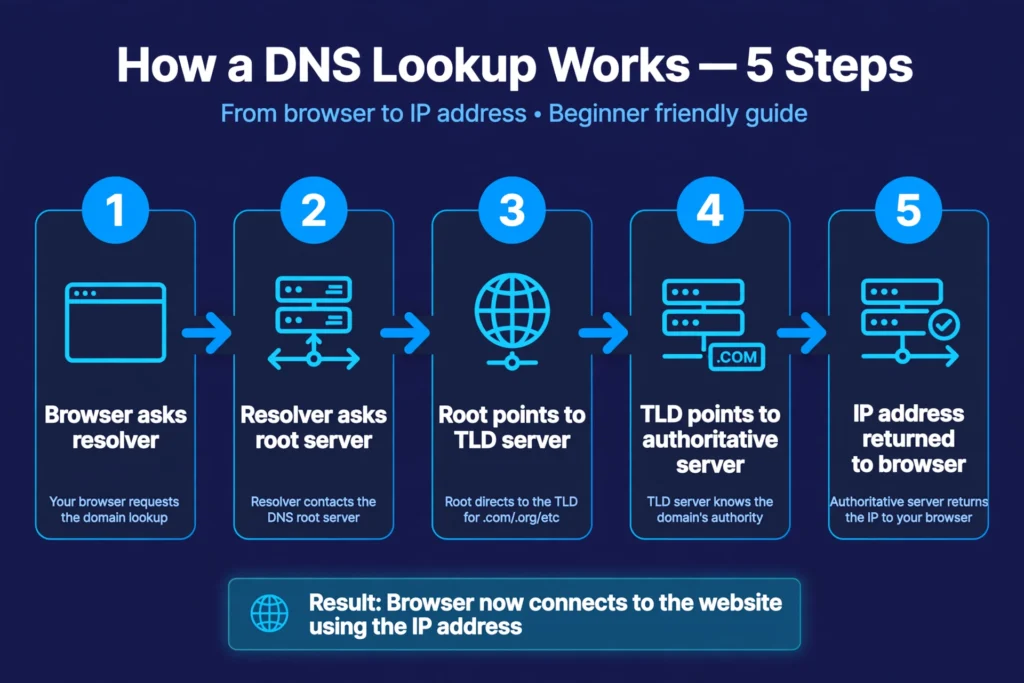
Let's trace a real lookup, step by step. Imagine you just typed thegeeksguru.com and pressed Enter. Here's what happens behind the curtain:
Step 1 — Your browser asks the resolver: "What's the IP of thegeeksguru.com?" The resolver first checks its own memory (cache). If someone nearby looked this up a minute ago, it answers instantly. Most beginners get stuck right here thinking DNS is one big database — it's not; it's a chain of handoffs.
Step 2 — The resolver asks a root server: There are 13 logical root servers worldwide. The resolver asks one: "Where do I find .com names?" The root server doesn't know the answer, but it knows who does: "Ask the .com TLD server."
Step 3 — The resolver asks the .com TLD server: "What's the IP of thegeeksguru.com?" The TLD server replies: "I don't host that site, but the authoritative name server for thegeeksguru.com is at this address — ask them."
Step 4 — The resolver asks the authoritative server: This is the server that actually holds thegeeksguru.com's records (usually managed by the domain registrar or web hosting company). It answers: "thegeeksguru.com → 104.21.56.3".
Step 5 — The resolver returns the IP to your browser: Your browser connects to 104.21.56.3 and the page loads. The whole chain typically takes 20–100 milliseconds. When I first learned this, I was amazed that four separate servers cooperate just to load one page — and it still feels instant.
Here's the whole chain as a picture, plus a short animation walking through it:

DNS Record Types You'll Actually Meet
An authoritative server doesn't hold just one answer — it holds records, each with a job. Here are the ones beginners bump into most:
| Record | What it does | Real example |
|---|---|---|
| A | Points a name to an IPv4 address | thegeeksguru.com → 104.21.56.3 |
| AAAA | Points a name to an IPv6 address | thegeeksguru.com → 2606:4700::... |
| CNAME | Points a name to another name (an alias) | www.thegeeksguru.com → thegeeksguru.com |
| MX | Tells the world where your email goes | Points to Google's mail servers |
| TXT | Holds text notes (used to verify you own the domain) | "google-site-verification=..." |
In my opinion, you only need to memorize A and CNAME at first. The rest you can look up when you actually need them — that's what I did, and it worked out fine.
Why This Matters to You
Three practical takeaways. First, speed: your resolver choice affects how fast every site loads. Public resolvers like 1.1.1.1 (Cloudflare) or 8.8.8.8 (Google) are often faster than your ISP's default — you can change this in your Wi-Fi settings in under two minutes, and I genuinely recommend trying it.
Second, privacy: your resolver sees every site you look up. That's one more reason people pair a fast resolver with a VPN — the VPN hides the lookups from your internet provider too.
Third, troubleshooting: next time a site won't load but your internet "works," try flushing your DNS cache (on Windows: ipconfig /flushdns). Honestly, this fixes the problem more often than people expect.
Test Your Understanding
Question: When you type thegeeksguru.com into your browser, what does DNS give back?
- The website's HTML code
- The server's IP address
- Your Wi-Fi password
- A tracking cookie
Answer: B — DNS translates the name into an IP address; your browser fetches the HTML afterwards.
📅 Want a study plan for this topic?
Get a free 7-day learning plan in your calendar — one small lesson every day.
Related Articles
- How the Internet Actually Works — From Your Click to the Website
- How to Put Your Website Online: A Beginner's Guide to Web Hosting
- What Is a VPN? A Beginner's Guide to Protecting Your Online Privacy
Conclusion
DNS is the reason you can navigate the internet with words instead of memorizing strings of numbers. It's a chain of four handoffs — resolver, root, TLD, authoritative server — that finishes before you even blink. Next time a page loads instantly, you'll know the quiet little phone book lookup that made it happen. And if you want pages to load a touch faster, try switching your resolver to 1.1.1.1 — it's the easiest two-minute upgrade I know.
Leave a Reply